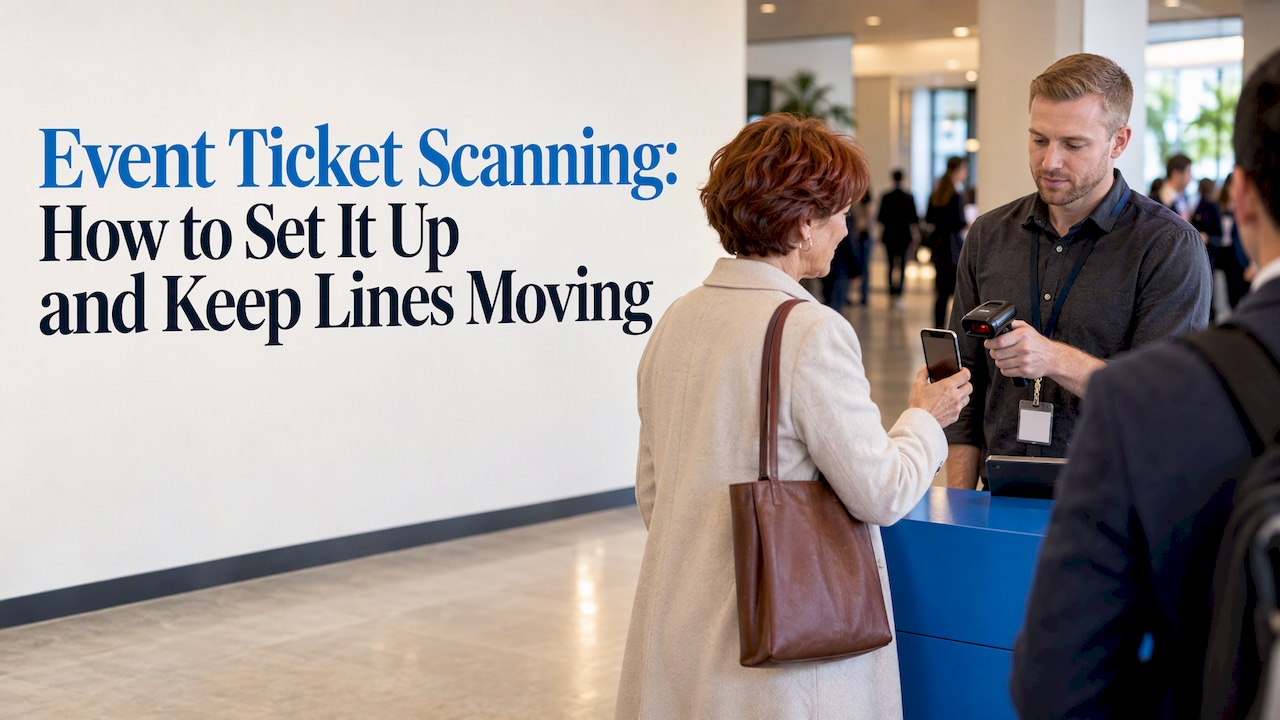
Event ticket scanning means reading a QR code or barcode on a ticket and checking it against your attendee list in seconds. A good setup admits valid guests, flags tickets that were already used, and records every arrival without a paper list. The best results come when ticketing, registration, check-in and reporting live in one record, so the scanner always checks against the same data you sold from. That is how rsvpBOOK, which has supported event organizers since 2004, approaches it.
This guide covers how a scan works, how to set up entrances, what staff do when a scan fails, and how to keep the process fast, accessible and secure.
TL;DR
- A scan reads a unique code on each ticket and checks it against your attendee list. A valid ticket is admitted. A used or unknown one is flagged.
- Plan scanning before you sell tickets: one code per ticket, one attendee record, one list every scanner checks.
- Match the number of scanners and lanes to your peak arrival window, and brief staff on the three problem cases: no scan, already used, re-entry.
- Some digital tickets use rotating barcodes, so screenshots may be refused. Tell attendees to open the ticket in their wallet or app.
- rsvpBOOK offers free QR check-in on any smartphone, with hands-on implementation support if your event needs it.
Table of Contents
- How event ticket scanning works
- QR codes, barcodes and rotating codes
- How to scan a QR code ticket, step by step
- Setting up entrances and scanners
- What staff do when a ticket won’t scan
- Making scanning faster, accessible and secure
- Scanning for trade shows and career fairs
- Why a connected system beats stitched-together tools
- Plan your event check-in with rsvpBOOK
- FAQ
- Sources
How event ticket scanning works
Every ticket carries a unique code. When a guest arrives, the scanner reads it and looks up the matching record in the attendee list. The screen then shows a clear result: admit or stop.
There are four moving parts:
- A code per ticket. It is generated when the ticket is issued and tied to one attendee record.
- A ticket the guest can show. That is a printed page, a phone screen, a wallet pass or an app ticket.
- A scanner. Usually a smartphone camera running a scanning app, or a dedicated handheld or kiosk.
- A list to check against. This is the part that decides whether scanning is reliable.
The code itself holds very little. Its job is to point to a record. If that record says the ticket was already scanned, the second scan is flagged, which is how scanning catches copies and shared screenshots.
That is why the quality of the list matters more than the scanner. If tickets are sold in one tool, registrations are managed in a spreadsheet and check-in happens in a third app, someone has to reconcile the three. With event ticketing and attendee management in the same system, a ticket sold at 9 a.m. is on the door list at 9:01.
QR codes, barcodes and rotating codes
Most events use one of three kinds of code.
| Code type | What it is | Good to know |
|---|---|---|
| Static QR code | The same image every time the ticket is shown | Easy to email, print or save to a phone. A copy works until the first scan, then the second is flagged. |
| 1D barcode | Classic striped barcode | Reads well on printed tickets and dedicated scanners. |
| Rotating (dynamic) barcode | Changes every few seconds inside an app or wallet | Screenshots and print-outs stop working. Common at large venues. |
Rotating codes are worth understanding because guests will ask about them. Bethel Woods Center for the Arts, a US venue using Ticketmaster’s SafeTix, explains that its barcode refreshes every 15 seconds, that screenshots, PDFs and print-outs are not valid for entry, and that tickets saved to a phone wallet still work with limited or no cell service.
Most corporate, association, nonprofit and training events do not need rotating codes. A unique static QR code per registrant, checked against a live list, already blocks the most common problem: the same ticket presented twice.
How to scan a QR code ticket, step by step
For a guest, the steps are simple. For staff, a few details make the difference between a 3-second scan and a 30-second one.
- Guest opens the ticket early. Ask attendees to pull up the QR code while they wait, not when they reach the scanner.
- Brightness up, screen steady. A dim or cracked screen is the most common cause of a slow read. Staff can ask guests to raise brightness.
- Scanner aims at the code. Hold the camera 6 to 12 inches from the screen or paper. Let it focus before moving.
- Read the result. A clear pass screen means admit. Anything else means follow your problem procedure.
- Hand over the badge or wristband if you use one. Scanning and badge handoff should be one motion, not two lines.
With rsvpBOOK, QR check-in is free on any smartphone, so volunteers can scan with devices they already carry. Staff do not need special hardware to start. If your event needs more, custom name badges and Kiosk+ self check-in are available, and badge printing and check-in kiosk hardware are optional add-on rentals.
Setting up entrances and scanners
Most long lines come from planning, not from the scanning technology. Work through these decisions before the doors open.
Estimate your peak arrival window
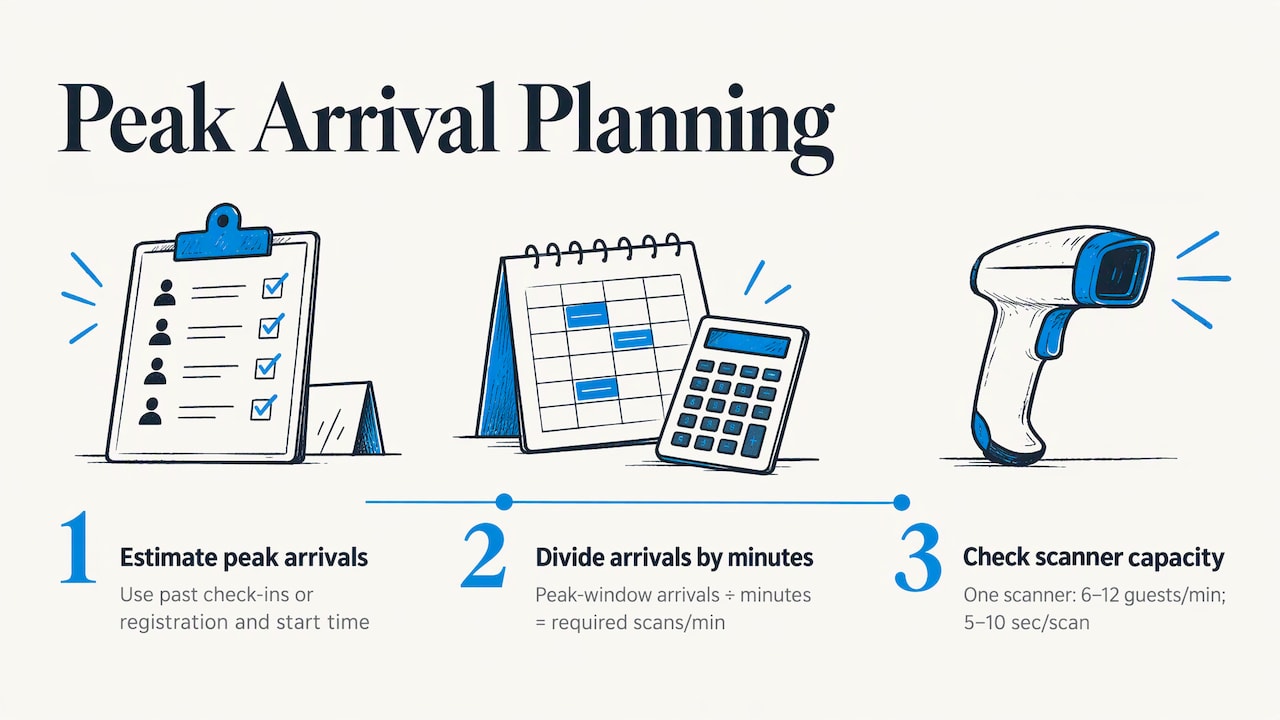
Guests do not arrive evenly. For a conference with a 9 a.m. start, a large share of attendees may arrive in the 30 minutes before. Look at your last event’s check-in times, or your registration total and start time, and plan for that rush, not the average.
A rough planning method: divide the number of people you expect in your peak window by the number of minutes, then check that your scanners can clear that many people per minute with some room to spare. If one scanner clears a guest every 5 to 10 seconds in your own test, you will know how many lanes you need.
Separate lanes by need
A single line for everyone is the slowest design. Consider:
- Pre-registered with ticket. The fastest lane. Scan and go.
- Name lookup. For guests who forgot or cannot open their ticket.
- On-site registration or payment. Kept away from the main flow.
- VIP, speaker, exhibitor and staff. Separate so they do not clog the general lane.
If you do sell tickets at the door, a separate lane with mobile payment card readers keeps payment from slowing down guests who already hold tickets.
Use more than one scanner, one list
Multiple scanners are fine as long as they all check the same live list. Two devices working from two exported spreadsheets can both admit the same ticket. Before the event, confirm that a test ticket scanned at one device shows as used on another.
Name the lead and the backup
Assign one person at each entrance who decides exceptions. Staff should not have to hunt for a manager when a guest has a problem. Keep a backup device charged, and a printed or downloaded door list for emergencies.
Rehearse once
Ten minutes before doors open, run five test tickets through every scanner: one valid, one already used, one for the wrong session, one from a different event, and one printed copy. Fix what you find while there is no line.
What staff do when a ticket won’t scan
Staff should have a short, written procedure for each of the three common failures. Print it on a card and keep it at each station.
The code won’t read
- Ask the guest to raise screen brightness and remove any glare or cracked-screen cover.
- If it is a printed ticket, check that it is not folded across the code.
- If the code still fails, look the guest up by name or email in the attendee list and admit them from there.
- If the guest says they are using a rotating-barcode ticket from an app, ask them to open it in the app or wallet rather than from a screenshot.
The ticket was already used
Do not accuse anyone. Say the system shows the ticket scanned earlier, and ask for the name on the order. Common innocent causes: the guest left and is returning, a family member scanned the same ticket, or the code was scanned twice by accident. Check the scan time on your list. If the original attendee is genuinely inside, send the case to the entrance lead.
The ticket is for another day, session or event
Tell the guest which date or session the ticket covers, and direct them to the lead if they need to change it. For multi-day and multi-session events, set rules in advance so staff do not improvise. For events with workshops and CE credits, session-level attendance tracking lets you scan at the room door as well as the main entrance.
Re-entry
Decide before the event whether guests can leave and return. If yes, tell staff whether to scan again, and what the system should show on a second entry. A clear policy on the signage saves arguments.
Making scanning faster, accessible and secure
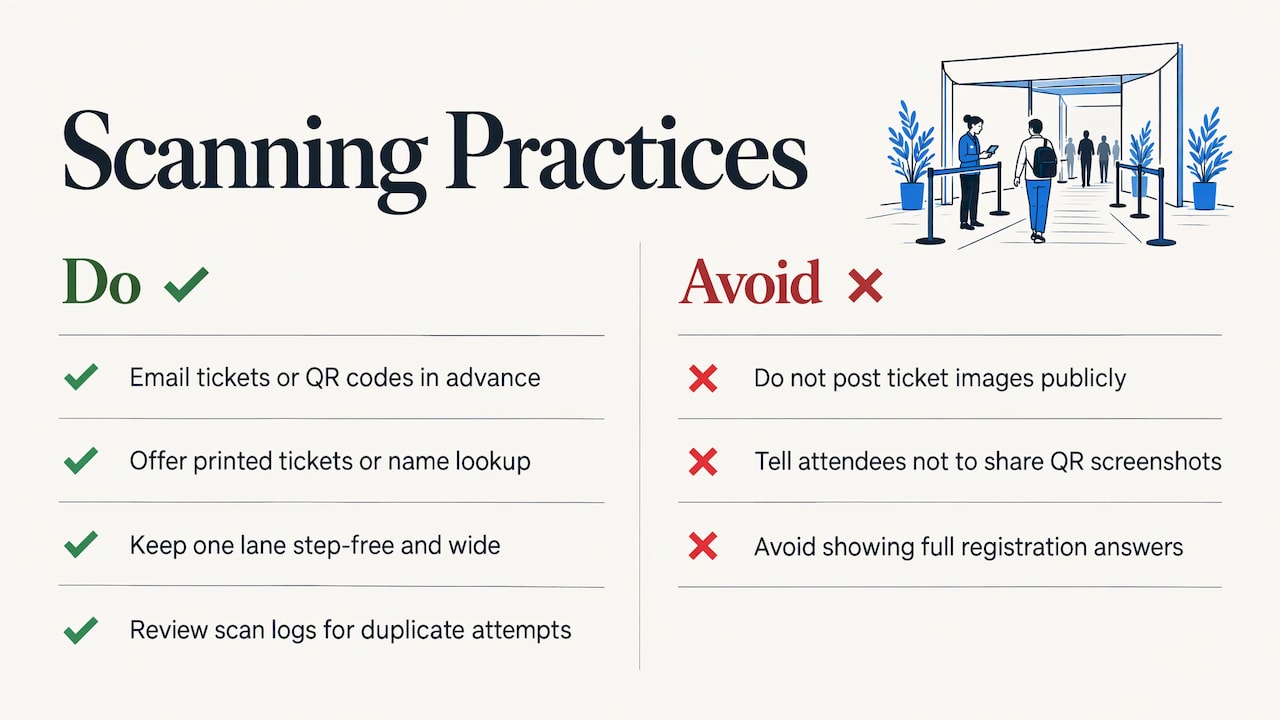
Faster. Send the ticket or QR code by email ahead of time with a reminder of the entrance location. Automatic alerts and SMS reminders help get the code in the attendee’s hands before they leave for the venue. Open entrances early, put signs at queue height, and ask guests to have their codes ready.
Accessible. Offer a way in for guests who cannot use a phone screen: a printed ticket, a name lookup at a staffed lane, or a self check-in option. Keep one lane step-free and wide enough for mobility devices, and make sure staff know that a guest with a disability may need more time at the scanner.
Secure. Unique codes per ticket, a single live list and scan logs are the core controls. Review the scan log after the event for duplicate attempts. Do not post ticket images publicly, and tell attendees not to share screenshots of their QR codes on social media.
Private. The scan result staff see should be limited to what they need: name, ticket type and a pass or fail. Avoid showing full registration answers at a public scanner.
Scanning for trade shows and career fairs
At a trade show, the entrance scan is only the first one. Exhibitors want badge scans at the booth too.
rsvpBOOK offers exhibitor and organizer lead retrieval, so a scan at the booth becomes a captured lead instead of a pile of business cards. To draw people to the booth, standalone booth giveaway tools, either an Instant Prize Wheel or a live Winner Drawing, start at $99 per event. Visitors scan, spin or enter, and the exhibitor ends the day with a list of qualified contacts.
For career fairs, the same approach helps recruiters. Candidate capture at the booth and visible booth traffic give hiring teams a list to follow up on, and a prize wheel gives students a reason to stop at the table.
Why a connected system beats stitched-together tools
Many teams start with a free scanning app and a spreadsheet export. That works until the first late registration, the first transfer, the first refund. Each change has to be copied to the scanner list by hand, and each copy is a chance for a valid guest to be turned away or an invalid ticket to get in.
A connected record avoids this. Registration, payment, ticket, badge, session attendance and reports all point at the same attendee. When something changes, the door list changes too. That also gives you custom reports after the event: who arrived, when, and where.
rsvpBOOK is built to be a flexible alternative to enterprise event platforms. It handles complex events, with custom registration paths, group and table registration, sessions and workshops, without the weight of an enterprise rollout. Pricing is per registration, with discounted rates for nonprofits and government organizations.
Our view: scan against the same record you sold from
Over the years we have seen one pattern hold true: scanning problems at the door are usually data problems that started weeks earlier. A ticket gets sold in one place, edited in another and checked in a third.
That is why we built rsvpBOOK to connect every stage of an event in one record: registration, payments, sessions, onsite operations, exhibitor programs, engagement and reporting. The scan is then just the moment the record updates.
We also think planners should choose how much help they want. Some teams set up on their own. Others want hands-on implementation support, and we offer it. Either way, run a rehearsal before doors open.
Droshawn
Plan your event check-in with rsvpBOOK
If you want ticketing, registration and scanning in one place, start with rsvpBOOK Event Management Software. Build a branded registration site, issue tickets with unique QR codes and check guests in with any smartphone. Add name badges, Kiosk+ self check-in or the attendee mobile app as your event grows. Pricing is per registration, and nonprofit and government organizations get discounted rates.
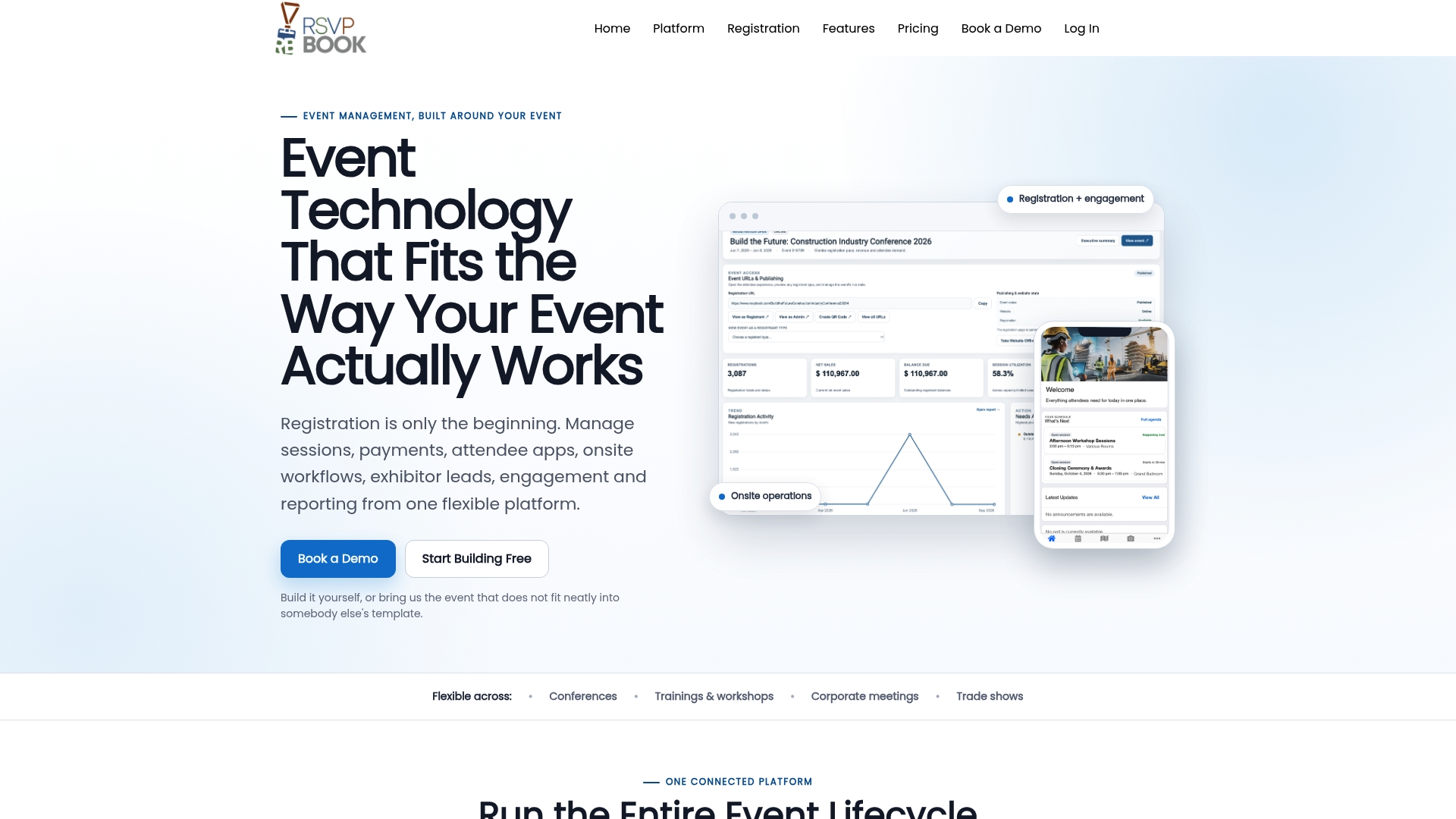
For a closer look at the door experience, see how free QR code check-in works for organizers. One rsvpBOOK customer moved more than 2,600 attendees through check-in with QR scanning.
FAQ
Can I scan event tickets with my phone?
Yes. Most modern events scan QR codes with a smartphone camera. rsvpBOOK offers QR check-in that is free on any smartphone, so volunteers and staff can use devices they already own.
What if a guest’s phone is dead or the ticket won’t load?
Look the guest up by name or email in the attendee list and admit them from there. Keep a lane or a station for lookups so the main scan line keeps moving.
Why does a screenshot of a ticket sometimes get rejected?
Some venues use rotating barcodes that refresh every few seconds, so a static screenshot is no longer valid. Guests should open the ticket from the app or phone wallet instead.
How many scanners do I need?
It depends on your peak arrival window. Test how long one scanner takes per guest, then divide your expected peak arrivals by that rate. Add a spare device and a separate lane for lookups.
Do I need special hardware?
Not to start. A smartphone is enough for QR scanning. If you want printed badges or self check-in stations, rsvpBOOK offers badge printing and Kiosk+ kiosk hardware as optional add-on rentals.
Ready to see it in action? Book a demo or start building an event free.
Sources
Recommended
- How to scan Event Attendees online
- Event Ticketing
- How to scan Session Attendees online?
- Event Check-In App: What to Look For and How to Use One
Planning an event that doesn’t fit neatly into somebody else’s template? See how rsvpBOOK handles registration, onsite check-in, lead retrieval and engagement in one platform. Book a demo: https://www.rsvpbook.com/book-a-demo

